Article
Docker & Kubernetes — A Concept-First Primer
Throughout this tutorial we will use one recurring example: TaskNote, a small to-do list web application. TaskNote has an HTTP API (Application Programming Interface — the way programs talk to each other) written in Node.js, a PostgreSQL (popular open-source database) for stor…

- Published on
A note before section 1
Throughout this tutorial we will use one recurring example: TaskNote, a small to-do list web application. TaskNote has an HTTP API (Application Programming Interface — the way programs talk to each other) written in Node.js, a PostgreSQL (popular open-source database) for storage, and a small image-resize worker (a background process that does jobs off the request path). The same app appears in every part — first as one container, then as many, then as a Kubernetes workload.
The tutorial is organized in three parts. Part I teaches Docker. Part II teaches Kubernetes. Part III covers everything around them. Read in order — Kubernetes makes no sense without containers.
We tell the truth about complexity. Most readers will use Docker every week and Kubernetes never. After one read, you should know when not to use Kubernetes as confidently as you know what it is.
Part I — Containers and Docker
1. Why Containers Exist
The story starts with one sentence every developer has heard: "It works on my machine."
A developer writes TaskNote on their laptop. Node.js 20, PostgreSQL 16, Ubuntu 24.04. They ship the code to a server. Node.js is 18 there. The PostgreSQL client library is built against an older OpenSSL. The app crashes. Three hours later, they discover one library was not installed.
Containers solve this by packaging the app together with everything it needs to run — a specific Node.js version, system libraries, certificates, files. The package runs the same on a laptop, a colleague's laptop, a test server, and the production server.
Think of it like… a meal kit delivery. The recipe (your code) is useless unless the right ingredients (libraries) are in the right amounts at the right step. A meal kit ships everything pre-portioned in one box. Open the box anywhere, the meal turns out the same.
In software, this looks like… TaskNote's container includes Node.js 20, the exact
npm installoutput, the system certificates, and the app code. You hand that container to any machine running Linux, and it boots in two seconds with the same behavior.Why it matters: the gap between development and production is the source of most "deploy day" incidents. Containers shrink that gap from hours of debugging to zero.
The four jobs containers do for you
- Reproducible environments — same bytes everywhere.
- Isolation between apps on one host — TaskNote and an unrelated app share a server without fighting over Node.js versions.
- Fast start-up — a container starts in milliseconds, not minutes.
- Shareable artifacts — the container is a file. Push it, pull it, version it.
Every later Docker concept maps to one of these four jobs.
2. What a Container Actually Is
A container is not a tiny virtual machine. That is the most common misconception. A container is a regular Linux process that the kernel pretends has its own filesystem, network, and process tree.
Two Linux features do the trick.
Linux namespaces (isolate what a process can see)
A namespace (a per-process view of part of the system, so the process sees only what is in its namespace) is the kernel's way of saying "this process gets its own copy of this resource." Linux has several:
- PID (Process ID) namespace — the process inside thinks it is process 1; it cannot see other processes on the host.
- Network namespace — its own network interfaces, IP, routing table.
- Mount namespace — its own view of the filesystem.
- UTS, IPC, User namespaces — hostname, inter-process channels, user IDs.
Think of it like… a hotel room. The whole hotel is one building (one Linux kernel). Each guest sees their own bed, bathroom, and door, and cannot see other rooms. They believe they are alone.
Linux cgroups (limit what a process can use)
A cgroup (control group — a kernel feature that limits how much CPU, memory, or I/O a group of processes can use) caps the resources a container can consume. Without it, one runaway container could eat all RAM on the host.
Think of it like… the hotel meter for water and electricity. Each room sees its own taps, but the building also limits how much each room can draw, so one guest cannot empty the tank.
In software, this looks like… TaskNote's container is given 0.5 CPU cores and 256 MB of RAM. It cannot exceed those caps even if it tries.
chroot (an older trick the container picture builds on)
A chroot (change root — switch a process's idea of the filesystem root to a subdirectory) is the oldest piece of this puzzle. It pretends /srv/jail is /. Modern containers go further with mount namespaces, but the spirit is the same: hand the process its own view of the disk.
Proof that a container is just a process
If you start a container and run ps -ef on the host, you can see its process. It has a real PID on the host (different from the PID 1 the container itself sees). Stop the container, the process dies. Nothing magical.
3. Container vs Virtual Machine
The most-asked beginner question. The right way to see the difference is "what is shared?"
| Virtual Machine | Container | |
|---|---|---|
| Kernel | Each VM has its own kernel | All containers share the host kernel |
| Operating System | Each VM has its own full OS | Containers ship only what their app needs |
| Start time | Tens of seconds | Milliseconds |
| Footprint on disk | Gigabytes per VM | Tens to hundreds of megabytes per image |
| Isolation strength | Strong (hardware-assisted) | Weaker (kernel bug = host risk) |
| Right tool for | Different OSes on one host, hostile workloads | Same OS, many small services |
Containers are lighter and faster. VMs are stronger isolation. Both are still common, often in the same stack — many cloud platforms run containers inside VMs.
Don't confuse with… "container" and "VM" are not synonyms. People who say "spin up a container" sometimes mean "spin up a VM." Listen for whether they share the host kernel.
4. Image vs Container — the Recipe and the Cake
These two terms are mistaken for each other constantly.
- An image (a read-only template that bundles a filesystem, app code, and metadata) is the recipe.
- A container (a running instance of an image, isolated by namespaces and cgroups) is the cake.
One image can produce many containers. The image does not change when a container runs; the container's writes are scratch space that vanishes when it stops (unless you mount a volume — Section 7).
Think of it like… a printable cake recipe. One recipe, many cakes. Each cake is eaten or thrown away; the recipe stays.
In software, this looks like… the
tasknote-api:1.0.0image is built once. We run 1 copy in dev, 3 copies in production behind a load balancer, and 5 more for a load test next week. Same image, eight running containers.
Image layers (each Dockerfile instruction adds a layer; layers are cached and shared)
An image is built as a stack of read-only layers. Each instruction in a Dockerfile (Section 5) adds one layer. The runtime stitches them together.
Why it matters: layers are cached. If you change one line in the app, only the layers affected need to rebuild. This makes builds seconds instead of minutes.
The image cache (Docker's local store of built layers, reused on rebuilds) is the reason docker build after a small code change is fast. Order your Dockerfile instructions so that the rarely-changing layers come first; the cache survives longer.
OCI image (Open Container Initiative — the open standard for image format)
The format is standardized so that an image built by Docker runs in Podman or Kubernetes without changes. The OCI image spec is what makes the ecosystem interoperable.
base image (the starting layer your Dockerfile builds on, like node:20-alpine or python:3.12-slim)
You almost never start from nothing. You pick a base image. distroless (a stripped image with only the language runtime, no shell, no package manager) is the security-conscious choice — it cuts attack surface but makes debugging harder.
5. The Dockerfile — Anatomy
A Dockerfile (a text file with build instructions for an image) is how you describe an image. We walk through a small but realistic one for TaskNote's API:
# A minimal Dockerfile that builds the TaskNote API.
FROM node:20-alpine
WORKDIR /app
COPY package*.json ./
RUN npm ci --only=production
COPY . .
ENV NODE_ENV=production
EXPOSE 8080
ENTRYPOINT ["node"]
CMD ["server.js"]
We explain each instruction in plain words.
FROM — pick a base image
FROM node:20-alpine says "start from a tiny Linux + Node.js 20 image." Trade-off: alpine is small (~50 MB) but uses musl libc — some native modules misbehave.
WORKDIR — set the working directory inside the image
WORKDIR /app is the directory the next instructions run in. Avoid relative paths everywhere else by setting this once.
COPY — copy files from your build context into the image
COPY package*.json ./ copies the dependency manifests first, before the app code. Why first? Because of the layer cache rule.
Layer cache rule: put rarely-changing things first, frequently-changing things last. Dependencies change less often than app code. By copying
package*.jsonand runningnpm cibefore copying the rest, you reuse the dependency layer on every code-only change. Builds drop from 2 minutes to 4 seconds.
RUN — execute a shell command at build time
RUN npm ci --only=production installs dependencies. Each RUN adds a layer. Combine related commands with && to avoid layer bloat.
ENV — set environment variables baked into the image
ENV NODE_ENV=production is read by the app at runtime. Do not put secrets here — anyone who can read the image can read the env values.
EXPOSE — document which port the container listens on
EXPOSE 8080 is documentation only. It does not actually open a port; that happens when you run the container with -p (Section 7).
ENTRYPOINT and CMD — what runs when the container starts
ENTRYPOINT(the command that always runs; arguments are appended to it) —["node"]means every container will runnode ....CMD(the default arguments, overridable ondocker run) —["server.js"]is the default file passed to node.
The pair makes the container behave like a single command. Trade-off: simple CMD-only Dockerfiles are easier to override on the command line; ENTRYPOINT is stricter but harder to misuse.
Multi-stage build (use one image to compile and a second, slim image to ship)
Build artifacts and build tools belong in different worlds. Multi-stage builds keep the final image small.
# Stage 1 — fat image with build tools.
FROM node:20 AS build
WORKDIR /app
COPY . .
RUN npm ci && npm run build
# Stage 2 — slim image with just the runtime.
FROM node:20-alpine
WORKDIR /app
COPY /app/dist ./dist
COPY /app/node_modules ./node_modules
ENTRYPOINT ["node", "dist/server.js"]
Real situation — without multi-stage, TaskNote's image is 1.2 GB (it carries
gcc, headers, build artifacts). With multi-stage, it shrinks to 180 MB. Faster pulls, smaller attack surface, lower bandwidth bill.
The PID 1 problem (the first process in a container has special signal-handling rules; many language runtimes do not handle it correctly)
When a container starts, your app becomes process 1 inside the container's PID namespace. PID 1 has duties: reaping zombie child processes, handling SIGTERM for graceful shutdown. Many language runtimes (Node, Python) do not do this well by default.
The symptom: docker stop waits 10 seconds and force-kills your app. Or zombie processes pile up.
The fix: a tiny init process. tini (a minimal init that handles signals and reaps zombies, often included via --init) is the common one. Run with docker run --init ... or set init: true in compose.
6. Registries — Where Images Live
A registry (a server that stores and serves Docker images over HTTP) is to images what GitHub is to code. You push to upload, you pull to download.
pull(fetch an image from a registry to the local machine).push(upload a local image to a registry).- Docker Hub (the default public registry, run by Docker Inc.) is what
docker pull node:20hits without any prefix.
Image names broken down
A full image reference looks like this: ghcr.io/your-org/tasknote-api:1.4.0
ghcr.io— registry hostname.your-org/tasknote-api— namespace and repository.1.4.0— tag (a human-readable label pointing to a specific image version).
Behind the tag, there is also a digest (a sha256: hash uniquely identifying the exact bytes of an image). Tags can move; digests cannot. For production, pin to a digest if you want full reproducibility.
Why :latest is dangerous in production
:latest is just a tag, but the convention is "the most recent build." If you deploy tasknote-api:latest, the next pull might be a different image than the one you tested. Always tag with a version or commit hash for production.
Common registries: Docker Hub (default public), GHCR — GitHub Container Registry (integrated with GitHub Actions), GitLab Container Registry (integrated with GitLab CI), Harbor (self-hosted, enterprise features), Quay (Red Hat, security scanning).
7. Volumes, Bind Mounts, and Networks
Containers are ephemeral (their writable layer disappears when the container stops). To keep data, you mount storage from outside.
Volume — Docker-managed storage that survives container restarts
A volume is a folder on the host that Docker manages for you. You do not see the host path; you give it a name.
# Create and use a named volume for TaskNote's database.
docker volume create tasknote-db-data
docker run -v tasknote-db-data:/var/lib/postgresql/data postgres:16
Think of it like… a safe-deposit box at a bank. You hold a name; the bank holds the actual storage. Containers come and go; the box stays.
Bind mount — map a host folder into the container
A bind mount maps a specific host path into the container.
# Mount your laptop's source folder into the container during development.
docker run -v $(pwd)/src:/app/src tasknote-api
Trade-off: bind mounts are great for dev (edit on the host, the container sees changes instantly) and dangerous in production (the container can clobber host files, host paths break across machines).
tmpfs mount — in-memory storage, never persists
A tmpfs mount (an in-memory filesystem mounted into a container) exists only while the container runs.
In software, this looks like… TaskNote stores temporary upload chunks in
/tmpbacked by tmpfs. Fast, automatically cleaned, never written to disk.Why it matters: secrets passed through tmpfs do not leak onto disk. Use it for ephemeral, sensitive paths.
Networks — bridge, host, none
Docker gives a container one of three network modes.
- bridge (the default — the container has its own IP on a private virtual network, NAT-ed to the host).
- host (no isolation — the container shares the host's network stack).
- none (no networking at all).
Most containers use bridge. Use host only when you need raw access to host network interfaces (rare). Use none for tasks that should not talk to the network.
Port mapping (expose a container port on a host port — -p HOST:CONTAINER)
The container's port 8080 is invisible to the outside world by default. -p 8080:8080 makes the host accept connections on 8080 and forward them to the container.
Think of it like… a postal address forwarding service. Mail addressed to "host port 8080" gets re-routed to "container port 8080" inside the building.
8. docker-compose — Many Containers as One App
Running TaskNote means three processes: API, Postgres, image-resize worker. Three docker run commands by hand is fine. By the fifth service, the command line is unmanageable.
docker-compose (a tool that declares a multi-container app in one YAML file) is the answer. The whole stack — services, networks, volumes — lives in docker-compose.yml.
A service in compose is one declared container template. Compose can run several copies of a service if you scale it. Here is a minimal compose file for TaskNote:
# docker-compose.yml — TaskNote in one file.
services:
  api:
    image: ghcr.io/you/tasknote-api:1.4.0
    ports: ["8080:8080"]
    environment:
      DATABASE_URL: postgres://app:app@db:5432/tasknote
    depends_on: [db, cache]
  db:
    image: postgres:16
    environment:
      POSTGRES_PASSWORD: app
      POSTGRES_USER: app
      POSTGRES_DB: tasknote
    volumes: [dbdata:/var/lib/postgresql/data]
  cache:
    image: redis:7
volumes:
  dbdata:
We explain each piece.
services:— every key under it is one service (container template).image:— which image to run.ports:— host:container port mapping (Section 7).environment:— env vars passed at runtime.depends_on:— start ordering. Note that this only waits for the container to start, not to be ready.volumes:— Docker-managed storage; the bottom-levelvolumes:declares them.
docker compose up -d starts everything. docker compose down stops it. docker compose logs -f api tails the API logs.
Why it matters: compose teaches you to think declaratively about a multi-service app. You describe the desired state; the tool reaches it. This is exactly how Kubernetes manifests work — you have just learned the foundation of Part II.
9. When Docker Helps and When It Hurts
Be honest about the trade-off.
Docker helps when
- Multiple services glue together (API + DB + cache + worker).
- Dev/prod parity matters — the laptop should match the server.
- Distribution — you ship the app to users or other teams.
- CI — every test runs in a clean container.
- Polyglot teams — Python service next to a Go service next to a Java service.
Docker is overkill when
- A single static site (HTML, CSS, JS) — just upload to a host or CDN.
- A one-off Python script that runs on your laptop and nowhere else.
- A single-binary Go app with no dependencies —
scpand a systemd unit are simpler.
Real situation — a team Docker-ized a tiny utility that ran once a week on cron. The image build, the registry push, and the pull took longer than the script itself. Six months later, they replaced it with
python script.pyin a virtualenv. Less code, fewer moving parts.
If you can answer "no" to all of: do I have multiple services?, do I need to ship this to others?, do dev and prod environments differ painfully? — you may not need Docker at all.
10. Hands-On Lab: Containerize a Small App
We containerize a tiny TaskNote API, push it to GHCR, and pull it elsewhere. Each step has a verify check.
Step 1 — write the Dockerfile
The Dockerfile is from Section 5. Save it as Dockerfile in the project root.
Step 2 — build the image
docker build reads the Dockerfile and produces an image. The -t flag tags it with a name.
# Build and tag the image as tasknote-api:dev.
docker build -t tasknote-api:dev .
Verify: docker images | grep tasknote-api shows the new image with a size.
Step 3 — run a container from the image
docker run starts a container. -p maps a port (Section 7), --init adds tini (Section 5).
# Run the API on host port 8080 and add a proper init.
docker run --init -p 8080:8080 --name tn tasknote-api:dev
Verify: curl http://localhost:8080/health returns 200 OK. docker ps shows the container.
Step 4 — mount a volume so data survives restarts
If TaskNote writes uploads to /app/uploads, mount a named volume there.
# Stop the container and re-run with a named volume for uploads.
docker rm -f tn
docker run --init -p 8080:8080 \
  -v tasknote-uploads:/app/uploads \
  --name tn tasknote-api:dev
Verify: upload a file via the API, restart the container, the file is still there.
Step 5 — push to GHCR
GitHub Container Registry takes images via docker push. You need a personal access token with write:packages.
# Log in once, then re-tag and push.
echo "$GHCR_TOKEN" | docker login ghcr.io -u your-github-username --password-stdin
docker tag tasknote-api:dev ghcr.io/your-github-username/tasknote-api:1.0.0
docker push ghcr.io/your-github-username/tasknote-api:1.0.0
Verify: the package appears under your GitHub profile. docker manifest inspect shows the digest.
Step 6 — pull and run elsewhere
On any other machine with Docker:
# Pull the exact tagged version and run it.
docker pull ghcr.io/your-github-username/tasknote-api:1.0.0
docker run --init -p 8080:8080 ghcr.io/your-github-username/tasknote-api:1.0.0
Verify: curl against that machine returns the same response.
You now have a portable, versioned, runnable artifact. You also know enough to read 95 % of real-world Dockerfiles and compose files. Now we move up one level.
Part II — Orchestration and Kubernetes
11. Why Kubernetes Exists
The painful truth first: most apps do not need Kubernetes. If TaskNote runs on one VPS with docker-compose and 200 daily users, Kubernetes is the wrong tool. The complexity tax — operators, manifests, control plane upgrades, RBAC — costs more than the gain.
Kubernetes earns its complexity when:
- You run dozens of services across many machines, and a human cannot track which runs where.
- You need rolling deploys, auto-scaling, and self-healing without writing those scripts yourself.
- You have a platform team and the org budget to operate the cluster as a product.
What is "orchestration"?
Orchestration (software that decides which container runs on which machine, restarts it when it dies, and routes traffic to it) is the job. Kubernetes is the dominant tool for that job. Alternatives exist:
Common orchestrators: Kubernetes (industry standard, complex), Docker Swarm (simpler, in slow decline), Nomad (HashiCorp, also runs non-container workloads). Most readers will meet only Kubernetes.
Brutal honesty for the new reader
If your app is a small website, a single API, or a hobby project — stop here. Use Docker, or compose, or even just systemd on a VPS. Reach for Kubernetes when the cost of not having it (manual restarts, ad-hoc scripts, drift between servers) clearly exceeds the cost of operating it. That moment usually arrives later than newcomers think.
12. Cluster Anatomy
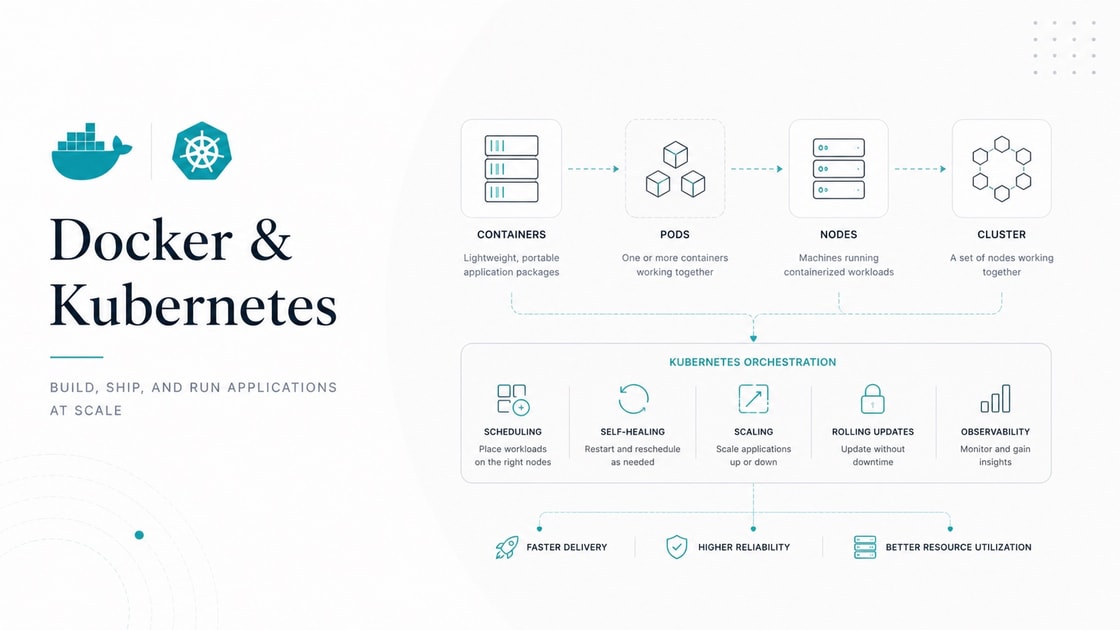
A cluster (a set of machines running Kubernetes together as one logical computer) is the unit you operate. Each machine in the cluster is a node (a single machine, physical or virtual, that runs containers as part of the cluster).
Nodes split into two roles.
Control plane — the brain
The control plane (the set of components that make global decisions for the cluster) runs on one or more dedicated nodes. It holds the desired state and tells workers what to do.
Components:
- kube-apiserver (the front door — every command and component talks to it over HTTP).
- etcd (a strongly consistent key-value store that holds the entire cluster state). Lose etcd, lose the cluster.
- scheduler (the component that decides which node runs each new Pod).
- controller manager (a bundle of loops that watch state and reconcile differences — e.g., create more Pods if a Deployment wants more).
- cloud-controller-manager (only on cloud) (handles cloud-specific actions like provisioning load balancers).
Worker node — where containers actually run
A worker node (a node that runs your application Pods) runs three pieces of software so it can join the cluster.
- kubelet (the agent on each worker — talks to the API server, starts and stops containers via the runtime).
- kube-proxy (maintains the network rules so Service traffic reaches the right Pods).
- container runtime (the lower-level program that actually runs the container —
containerd, CRI-O, orruncunderneath).
container runtime, containerd, and runc
A container runtime is the program that knows how to start a container from an image. There are layers:
- runc (the lowest-level runner — implements the OCI runtime spec, used under the hood).
- containerd (a higher-level runtime that manages images, snapshots, and calls runc). Used by both Docker and Kubernetes.
Kubernetes used to talk to Docker; today it talks directly to containerd through the CRI (Container Runtime Interface).
Think of it like… a restaurant. Control plane = the manager and the reservation book. Worker nodes = the kitchen lines. The kubelet on each kitchen = the chef who reads orders. Containerd = the actual cooking equipment. runc = the burner.
kubectl — the CLI you use every day
kubectl (the official command-line tool to talk to the kube-apiserver) is your hands. Every later YAML you write is sent through kubectl apply. The reader should pronounce it "cube control" or "cube cuttle" — both are common.
13. The Pod — the Smallest Unit
This is the most surprising K8s concept for newcomers.
A Pod is not a container. A Pod (the smallest deployable unit in Kubernetes — one or more containers that share network and storage and are scheduled together) is a small group of one or more containers that share network and storage, scheduled together as one unit.
In practice, most Pods have exactly one container. Why does the layer exist at all? Because some patterns need two containers glued so tightly they should never separate.
Think of it like… a desk and a chair pushed together as one unit when you move offices. Almost always one chair. Sometimes you tape a small lamp to the chair because the lamp must travel with it. The Pod is the desk-chair-(lamp) bundle.
Containers in the same Pod:
- Share an IP address (one network namespace).
- Can talk on
localhost. - Can mount the same volume.
sidecar (a helper container in the same Pod, providing logs, proxying, or syncing alongside the main container)
A classic example: an app container that writes logs to a file and a sidecar that ships those logs out. They share a volume; the sidecar reads what the app writes.
init container (a container in a Pod that runs to completion before the main container starts)
Used for setup: run database migrations, fetch secrets, wait for a dependency. The main container starts only after init containers exit successfully.
Why beginners trip on Pods
They expect to run "a container in Kubernetes." They actually run a Pod that wraps a container. For the 95 % case, the difference is invisible — but the word Pod shows up everywhere.
14. ReplicaSets and Deployments
A single Pod is fragile. If the node dies, the Pod dies. Traffic stops.
ReplicaSet — keep N copies of a Pod running
A ReplicaSet (a controller that makes sure a specified number of identical Pods are always running) watches the cluster. If a Pod disappears, it creates a new one.
You almost never write a ReplicaSet directly.
Deployment — versioned rollout on top of a ReplicaSet
A Deployment (a higher-level controller that manages ReplicaSets and adds rolling updates and rollback) is what you write 99 % of the time. It supports:
- Rolling updates — bring up new Pods, drain old ones, no downtime.
- Rollbacks —
kubectl rollout undoreturns to the previous version. - Pause and resume rollouts.
A manifest (YAML) (a declarative description of a Kubernetes object stored as a YAML file)
Kubernetes objects are described in YAML. Below is a tiny TaskNote Deployment.
# Deployment that keeps 3 TaskNote API Pods running, image pinned by tag.
apiVersion: apps/v1
kind: Deployment
metadata:
  name: tasknote-api
spec:
  replicas: 3
  selector:
    matchLabels: { app: tasknote-api }
  template:
    metadata:
      labels: { app: tasknote-api }
    spec:
      containers:
      - name: api
        image: ghcr.io/you/tasknote-api:1.4.0
        ports: [{ containerPort: 8080 }]
We walk every field.
apiVersion,kind— what kind of object this is.metadata.name— name of the Deployment.spec.replicas: 3— the desired number of Pods.spec.selector— how the Deployment finds its Pods (Section 15 explains labels).spec.template— the Pod template the Deployment stamps out.
Apply it: kubectl apply -f deployment.yaml. Kubernetes creates a ReplicaSet, which creates 3 Pods, which the scheduler assigns to nodes.
15. Services — Stable Addresses
Pods come and go; their IPs change. You cannot send traffic to a Pod IP directly without it breaking the next time the Pod restarts.
A Service (a stable virtual IP and DNS name that load-balances traffic to a set of Pods) solves this. Its address never changes. Behind it, a moving fleet of Pods serves the traffic.
Label — a key/value tag on Kubernetes objects
A label (a key/value attached to an object, used to group and select objects) is metadata you attach to Pods, Services, etc. app: tasknote-api, env: prod, team: platform.
Selector — pick objects by their labels
A selector (a query that matches objects by their labels) is how a Service finds its Pods.
Think of it like… name tags at a conference. A Service yells "everyone with label
app: tasknote-api!" and every matching Pod raises its hand.
Annotation — non-identifying metadata attached to objects
An annotation (a key/value used by tools and controllers, not for selection) carries data like "managed by Helm" or "build commit abc123". Selectors do not use annotations.
Three core Service types
- ClusterIP (only reachable inside the cluster — the default). Used for service-to-service traffic.
- NodePort (opens a port on every node — quick and dirty for demos).
- LoadBalancer (asks the cloud provider for a real load balancer with an external IP). On a self-hosted cluster, you need MetalLB or similar.
A small Service for our Deployment:
# A ClusterIP Service that load-balances across all Pods labeled app=tasknote-api.
apiVersion: v1
kind: Service
metadata:
  name: tasknote-api
spec:
  selector:
    app: tasknote-api
  ports:
  - port: 80          # the Service port
    targetPort: 8080  # the Pod port
16. Ingress — One Entry Point for HTTP
You have many Services. You have one public domain. You do not want one LoadBalancer per Service (expensive).
An Ingress (a Kubernetes object that defines HTTP routing rules from outside the cluster to internal Services) is a routing rule. "api.example.com goes to the tasknote-api Service. app.example.com goes to the tasknote-web Service."
An Ingress alone does nothing. You need an Ingress controller (software that watches Ingress objects and configures a real proxy — typically NGINX or Traefik — to act on them) in the cluster.
Common Ingress controllers: NGINX Ingress (default choice for many), Traefik (auto-TLS, dynamic config), HAProxy (performance focus), Cilium (eBPF-based, also a CNI).
A small Ingress for TaskNote:
# Routes HTTPS traffic for tasknote.example.com to the tasknote-api Service.
apiVersion: networking.k8s.io/v1
kind: Ingress
metadata:
  name: tasknote
spec:
  ingressClassName: nginx
  rules:
  - host: tasknote.example.com
    http:
      paths:
      - path: /
        pathType: Prefix
        backend:
          service: { name: tasknote-api, port: { number: 80 } }
17. ConfigMaps and Secrets
Apps need configuration. K8s has two objects for this.
ConfigMap (a Kubernetes object that holds non-sensitive key-value configuration, mounted into Pods as env vars or files)
apiVersion: v1
kind: ConfigMap
metadata: { name: tasknote-config }
data:
  LOG_LEVEL: "info"
  FEATURE_BETA: "false"
You inject a ConfigMap into a Pod via envFrom: or volumeMounts:.
Secret (a Kubernetes object that holds sensitive data — passwords, tokens, keys — base64-encoded by default)
apiVersion: v1
kind: Secret
metadata: { name: tasknote-db }
type: Opaque
stringData:
  DATABASE_URL: "postgres://app:supersecret@db:5432/tn"
Brutal honesty: "Secret" sounds encrypted. It is not. The default storage is base64, which is encoding, not encryption. Anyone with read access to etcd reads your secrets. Real protection requires:
- Encryption-at-rest in etcd.
- RBAC so only the right ServiceAccounts can read Secrets (Section 22).
- Or one of the dedicated tools below.
Real solutions for real secrets
Common secret-in-Git tools: Sealed Secrets (Bitnami — encrypts a Secret so it is safe to commit), SOPS (Mozilla — encrypts YAML/JSON with a key), External Secrets Operator (syncs values from real vaults like HashiCorp Vault into K8s Secrets).
Real situation — TaskNote stores its DB password in a Sealed Secret. The encrypted file is committed to Git. Only the cluster's controller can decrypt it. Even a stolen Git copy reveals nothing.
18. Storage — Persistent Volumes and PVCs
Pods are stateless by default. When a Pod dies, its scratch disk dies with it. Databases need storage that outlives Pods.
PersistentVolume (PV) — the actual chunk of storage in the cluster
A PersistentVolume (PV) (a piece of storage in the cluster, provisioned by an admin or dynamically, with its own lifecycle independent of Pods) is the real disk — an EBS volume, a Ceph block device, an NFS share.
PersistentVolumeClaim (PVC) — a Pod's request for storage
A PersistentVolumeClaim (PVC) (a Pod's request for a piece of storage with a specific size and access mode) is how a Pod asks for storage without knowing the details of what backs it.
Think of it like… an apartment rental. The PV is a real apartment in the building. The PVC is a tenant's request: "two rooms, this size, near a metro." The cluster matches them.
StorageClass — template for dynamic provisioning
A StorageClass (a named template that describes how to provision new PVs on demand — e.g., from an EBS driver, from local SSDs) lets you skip pre-provisioning. The cluster creates a PV when a PVC asks for one.
# A PVC asking for 5 GB of fast storage.
apiVersion: v1
kind: PersistentVolumeClaim
metadata: { name: tasknote-uploads }
spec:
  accessModes: [ReadWriteOnce]
  resources: { requests: { storage: 5Gi } }
  storageClassName: fast
The Pod then mounts the PVC by name.
19. Stateful Workloads — StatefulSet, DaemonSet, Job, CronJob
Deployment is for stateless apps. Some workloads need different controllers.
StatefulSet (a controller for Pods that need stable network identity and stable per-Pod storage — used for databases and queues)
Each Pod gets a predictable name (db-0, db-1, db-2) and its own PVC. They start in order. Useful for clustered databases that care which Pod is "primary."
Real situation — running PostgreSQL with replication on K8s uses a StatefulSet so the primary Pod always has the same name and disk after a restart.
DaemonSet (a controller that runs exactly one Pod on every node — used for per-node agents)
Logging agents, monitoring agents, network plugins — anything that has to run on every machine. When you add a node, a DaemonSet Pod appears on it automatically.
Job (a controller that runs Pods until they complete successfully — used for batch tasks)
A nightly database backup, a one-off data migration. The Job tracks success and retries on failure.
CronJob (a controller that creates Jobs on a schedule, like Linux cron)
A daily TaskNote summary email is a CronJob with schedule: "0 6 * * *".
20. Health Checks and Pod Lifecycle
How does Kubernetes know your Pod is broken? It asks. The questions are called probes.
liveness probe (an endpoint K8s pings to ask "are you alive?" — failing it triggers a restart)
If liveness fails, K8s kills the container. Use it for "the process is wedged and needs a kick."
Brutal honesty: an aggressive liveness probe is the leading cause of self-inflicted outages. If your app is just slow under load, a liveness probe will kill it and make the load worse.
readiness probe (an endpoint K8s pings to ask "are you ready for traffic?" — failing it removes the Pod from the Service rotation, but does not restart it)
Use it for "the app is up, but warming caches" or "I have lost my DB connection." Ready Pods receive traffic; not-ready Pods do not.
startup probe (a probe used during slow startup, before liveness kicks in)
For apps that need a long boot. The startup probe is checked first; once it passes, liveness takes over.
# A typical probe block on a container spec.
livenessProbe:
  httpGet: { path: /healthz, port: 8080 }
  periodSeconds: 10
  failureThreshold: 3
readinessProbe:
  httpGet: { path: /ready, port: 8080 }
  periodSeconds: 5
Pod lifecycle
21. Scheduling — Where Pods Land
The scheduler decides which node runs each Pod. You influence it with three controls.
Resource requests and limits
Each container declares how much CPU and RAM it needs.
- request — what the scheduler reserves on a node. Used to pick a node.
- limit — the hard cap. Going above the memory limit kills the container.
Without requests, the scheduler thinks your Pod needs nothing. The cluster overcommits and crashes under load.
Node selector and affinity
A node selector is a simple "run me only on nodes with label X." affinity (a richer set of rules to attract or repel Pods to/from nodes or other Pods) is more flexible — preferredDuringSchedulingIgnoredDuringExecution is the typical mode.
Taints and tolerations
A taint (a marker on a node that repels Pods unless they tolerate it) keeps random Pods off special nodes. A toleration (a marker on a Pod that lets it land on a tainted node) lets specific Pods through. Common pattern: a taint keeps non-GPU workloads off a GPU node.
HPA (Horizontal Pod Autoscaler) (a controller that adds or removes Pod replicas based on metrics like CPU)
The HPA reads metrics. When TaskNote's API CPU goes above 70 %, it scales from 3 to 6 replicas. When it drops, it scales back. Vertical scaling (bigger Pods) is a different controller (VPA), used much less often.
22. RBAC and ServiceAccounts
The cluster API has powerful operations: create Pods, read Secrets, delete Namespaces. RBAC (Role-Based Access Control — a system where permissions are assigned to Roles, and Roles are bound to users or accounts) controls who can do what.
Namespace — the cluster's folder structure
A Namespace (a logical partition of the cluster used to group objects and apply per-namespace RBAC and quotas) is K8s's folder. prod, staging, tasknote, monitoring are typical names. Most resources live inside a Namespace.
ServiceAccount (the identity a Pod uses to call the Kubernetes API)
When TaskNote calls kubectl from inside a Pod (rare but real), it does so as a ServiceAccount. RBAC rules attach to ServiceAccounts.
The two-paragraph mental model is: a Role lists allowed verbs (get, list, create) on resource types (pods, secrets). A RoleBinding ties a Role to a user or ServiceAccount in a Namespace. Cluster-wide versions (ClusterRole, ClusterRoleBinding) exist too. The reader needs to recognize the words; deep mastery comes later.
23. Hands-On Lab: First App on Local K8s
End-to-end with kind (Kubernetes IN Docker — runs a real K8s cluster as Docker containers, fastest to spin up locally). The full path: cluster → image → manifests → apply → curl → scale → update → rollback.
Step 1 — install tools and create a cluster
kind create cluster builds a local cluster in Docker.
# Install kind, kubectl, and create a cluster named "lab".
brew install kind kubectl k9s
kind create cluster --name lab
Verify: kubectl get nodes shows a control-plane node ready.
Step 2 — build the image and load it into kind
kind clusters cannot pull from your laptop's Docker by default. You load the image into the cluster.
# Build the image then load it into kind so the cluster can run it.
docker build -t tasknote-api:dev .
kind load docker-image tasknote-api:dev --name lab
Verify: docker exec -it lab-control-plane crictl images | grep tasknote-api shows the image.
Step 3 — write the manifests
Three files: deployment.yaml, service.yaml, ingress.yaml (the same shapes shown in Sections 14–16, with image: tasknote-api:dev and imagePullPolicy: IfNotPresent).
Step 4 — apply and check
kubectl apply -f . sends every manifest to the API server.
# Apply all three manifests in the current directory.
kubectl apply -f .
kubectl get pods,svc,ingress
Verify: kubectl get pods shows three Pods in Running state.
Step 5 — port-forward and curl
For local testing, kubectl port-forward exposes a Service on localhost.
# Open the Service on localhost:8080.
kubectl port-forward svc/tasknote-api 8080:80
In another terminal: curl http://localhost:8080/health → 200 OK.
Step 6 — scale up
kubectl scale changes the replica count without editing YAML.
# Run six replicas instead of three.
kubectl scale deployment tasknote-api --replicas=6
Verify: kubectl get pods now shows six.
Step 7 — rolling update and rollback
Build a new image, load it, update the Deployment.
docker build -t tasknote-api:dev2 .
kind load docker-image tasknote-api:dev2 --name lab
kubectl set image deployment/tasknote-api api=tasknote-api:dev2
Verify: kubectl rollout status deployment/tasknote-api reports success. Then roll back to confirm:
kubectl rollout undo deployment/tasknote-api
You now have a real Kubernetes app. Every concept in Part II showed up in this lab.
Part III — Beyond the Basics + Closing
24. Packaging — Helm vs Kustomize
Writing 30 raw YAML files for an app is painful. Two tools dominate.
Helm (a package manager for Kubernetes — bundles manifests as templated "charts" with values)
A Helm chart (a versioned bundle of Kubernetes manifests with a values.yaml of overridable settings) is the unit you install. helm install tasknote ./chart -f prod-values.yaml.
Trade-off: Helm's templating is Go templates, which are powerful but ugly. Charts can become hard to read.
Kustomize (a tool that layers patches over a base set of manifests — no templating, only structured overrides)
Kustomize keeps the base YAML clean and adds a kustomization.yaml with patches per environment.
Trade-off: easier to read, but expressing big differences (different counts of objects per env) is awkward.
Side-by-side for the same idea
# Helm — values.yaml drives a templated deployment.yaml in the chart.
replicaCount: 3
image: { repository: ghcr.io/you/tasknote-api, tag: 1.4.0 }
# Kustomize — overlay/prod/kustomization.yaml patches the base manifests.
resources: [../../base]
patches:
  - target: { kind: Deployment, name: tasknote-api }
    patch: |
      - op: replace
        path: /spec/replicas
        value: 3
Common tools: Helm (charts, releases, mature), Kustomize (patching, native to kubectl), Helmfile (orchestrates many Helm releases). Pick Helm when you publish charts for others; pick Kustomize when you only have a few env overrides.
25. GitOps in One Page
GitOps (a pattern where Git is the single source of truth for cluster state, and a controller in the cluster continuously reconciles to it) makes deploys boring on purpose. You change YAML in a repo. A controller notices and applies it. You roll back by reverting a commit.
Common tools: Argo CD (pull-based, popular UI), Flux (GitOps toolkit, lightweight).
The mental model: the cluster is what is in Git, by definition. If someone hand-edits via kubectl, the controller reverts it. If you want a change, write a PR.
26. Operators and CRDs (vocabulary only)
K8s lets you teach the API new object types.
A CRD (Custom Resource Definition — a YAML that registers a new kind of Kubernetes object, like PostgresCluster) is the schema. Once registered, kubectl get postgresclusters works.
An Operator (a controller written specifically to manage a complex app via CRDs — handling backups, failovers, upgrades the K8s way) is the brain. The Postgres Operator watches PostgresCluster objects and runs the database for you.
Why beginners need only the words: when a teammate says "we use the Postgres Operator," you know it is software that operates Postgres clusters via CRDs. You do not need to write one — at most you install someone else's Helm chart for it.
27. Service Mesh (vocabulary only)
A service mesh (a layer that adds a sidecar proxy to every Pod, handling mTLS, retries, traffic shaping, and observability without app code changes) sounds magical and is heavy. The two famous names:
Common service meshes: Istio (feature-rich, heavy), Linkerd (lightweight, simpler), Consul Connect (HashiCorp's option).
Brutal honesty: beginners should not adopt a service mesh. The cost — extra sidecars, complex config, debugging two layers of networking — is huge. Reach for it only when you have many services with strict security and traffic-management needs.
28. Common Anti-Patterns
Short, scannable list. Each one bites the hand that ignores it.
- Using Kubernetes for a 3-Pod app. The control plane alone is more work than the app.
- Running a database on K8s without knowing what a StatefulSet is. You will lose data.
- Using
:latesttags in production. Surprise rollouts on every pull. - Hardcoding configs into images instead of using ConfigMaps. Now every config change is an image rebuild.
- Storing real secrets as plain Secret YAML in Git. It is base64, not encryption. Use Sealed Secrets or SOPS.
- No resource requests and limits. One greedy Pod brings the node down.
- No liveness or readiness probes. A broken Pod silently keeps receiving traffic.
- Aggressive liveness probe killing slow Pods. Self-inflicted outages during load.
- Building a custom Operator before trying an existing Helm chart. 90 % of the time someone solved your problem.
- Ignoring the Namespace. Everything in
default. Six months later, you cannot tell what belongs to whom. - Pinning to one cloud's Service type.
LoadBalanceronly works where a cloud controller exists.
29. When to Use What — A Decision Path
Run this every time you ask "should we Dockerize / Kubernetize this?"
For learning, the recommended path is Docker Desktop (or rootless Podman) + kind + kubectl + k9s. For a small production cluster on a VPS, k3s is the sane default.
Vocabulary you will hear
Local Kubernetes (for learning): kind (K8s in Docker, fastest to spin up), minikube (classic, full features), k3d (k3s in Docker, very lightweight), Docker Desktop (built-in K8s).
Self-hostable production K8s: k3s (lightweight, single binary), k0s (zero-friction install), microk8s (Ubuntu-friendly).
Managed K8s (vocabulary only): EKS (Amazon's managed Kubernetes), GKE (Google's), AKS (Azure's), DOKS (DigitalOcean's), LKE (Linode's).
CLI / TUI: kubectl (official CLI), k9s (terminal UI), Lens (desktop GUI), kubectx + kubens (switch context/namespace).
Image build: docker build + BuildKit (default), buildah (daemonless), Kaniko (builds inside K8s).
Observability for K8s: Prometheus + Grafana (metrics), Loki (logs), Tempo / Jaeger (traces), kube-state-metrics (K8s object metrics).
30. What to Read Next
A short, opinionated list.
- Docker — Up & Running (Sean Kane, Karl Matthias). The reference Docker book, kept current.
- Kubernetes Up & Running (Burns, Beda, Hightower). The standard introductory K8s book.
- Kubernetes the Hard Way by Kelsey Hightower (free, on GitHub). Bootstrap a cluster from nothing. The best way to demystify the control plane.
- The official Docker docs (
docs.docker.com) and Kubernetes docs (kubernetes.io/docs). Both are unusually high-quality. - Programming Kubernetes (Hausenblas, Schimanski). When you start writing Operators.
- The Kubernetes Book (Nigel Poulton). Conversational, frequently updated, easy second pass.
- k3s docs (
docs.k3s.io). When you actually run a small cluster on a VPS. - Argo CD docs. When you adopt GitOps for real.
31. Glossary
- affinity — rules that attract or repel Pods to nodes or to other Pods.
- AKS — Azure's managed Kubernetes.
- annotation — non-identifying metadata on a K8s object, used by tools.
- API (Application Programming Interface) — the way programs talk to each other.
- Argo CD — pull-based GitOps controller, popular UI.
- base image — the starting layer your Dockerfile builds on.
- bind mount — map a host folder into a container.
- buildah — daemonless image builder.
- cgroup (control group) — limits CPU/memory/IO a process group can use.
- chroot — change a process's root directory to a subdirectory.
- Cilium — eBPF-based ingress and CNI.
- cluster — set of machines running Kubernetes together.
- ClusterIP — Service type only reachable inside the cluster.
- CMD — Dockerfile default arguments to ENTRYPOINT.
- ConfigMap — non-sensitive key-value config object.
- container — a running instance of an image, isolated by namespaces and cgroups.
- container runtime — the program that runs containers from images.
- containerd — high-level container runtime, used by Docker and K8s.
- control plane — components that make global decisions for the cluster.
- controller manager — bundle of reconcile loops for K8s objects.
- CronJob — Job on a schedule.
- CRD (Custom Resource Definition) — registers a new kind of K8s object.
- DaemonSet — runs one Pod on every node.
- Deployment — controller for rolling updates and rollback over ReplicaSets.
- digest —
sha256:hash uniquely identifying image bytes. - distroless — base image with only a runtime, no shell or package manager.
- Docker — default container engine, mature ecosystem.
- docker-compose — declares multi-container apps in YAML.
- Docker Desktop — desktop app with a built-in K8s for local use.
- Dockerfile — text file with build instructions for an image.
- Docker Hub — default public image registry.
- Docker Swarm — Docker's built-in orchestrator, simpler and in slow decline.
- DOKS — DigitalOcean's managed Kubernetes.
- EKS — Amazon's managed Kubernetes.
- ENTRYPOINT — Dockerfile command that always runs at start.
- etcd — strongly consistent key-value store holding cluster state.
- EXPOSE — Dockerfile documentation of which port the container listens on.
- External Secrets Operator — syncs Secrets from external vaults.
- Flux — GitOps toolkit, lightweight.
- GHCR — GitHub Container Registry.
- GitLab Container Registry — GitLab's image registry.
- GitOps — Git is the source of truth, controller reconciles cluster.
- GKE — Google's managed Kubernetes.
- HAProxy — high-performance reverse proxy and Ingress controller option.
- Harbor — self-hosted enterprise registry.
- Helm — package manager for Kubernetes; uses charts and values.
- Helm chart — versioned bundle of templated K8s manifests.
- Helmfile — orchestrates many Helm releases.
- HPA (Horizontal Pod Autoscaler) — scales replicas based on metrics.
- image — read-only template that bundles filesystem, app, and metadata.
- image cache — Docker's local store of built layers.
- Ingress — K8s object defining HTTP routing rules from outside the cluster.
- Ingress controller — software that watches Ingress objects and configures a real proxy.
- init container — runs to completion before the main container in a Pod.
- Istio — feature-rich service mesh, heavy.
- Job — controller that runs Pods until completion.
- k0s — zero-friction self-hostable Kubernetes.
- k3d — runs k3s in Docker locally.
- k3s — lightweight self-hostable Kubernetes, single binary.
- k9s — terminal UI for Kubernetes.
- Kaniko — builds container images inside a K8s cluster.
- kind — Kubernetes IN Docker; runs K8s clusters as Docker containers.
- kube-apiserver — front door of the control plane; receives all commands.
- kubectl — official Kubernetes CLI.
- kubectx + kubens — CLI utilities to switch context and namespace.
- kubelet — agent on each worker node that runs Pods.
- kube-proxy — maintains node network rules so Services route to Pods.
- Kustomize — layer patches over base YAML, no templating.
- label — key/value tag used to group and select objects.
- layer — single read-only step in an image, cached and shared.
- Lens — desktop GUI for Kubernetes.
- Linkerd — lightweight service mesh.
- liveness probe — endpoint K8s pings to ask "alive?" — failure restarts the container.
- LKE — Linode's managed Kubernetes.
- LoadBalancer — Service type that asks the cloud for an external load balancer.
- Loki — log aggregation in the Prometheus family.
- manifest (YAML) — declarative description of a K8s object.
- microk8s — Ubuntu-friendly self-hostable Kubernetes.
- minikube — classic local Kubernetes for learning.
- multi-stage build — Dockerfile pattern using build stage and slim runtime stage.
- Namespace (K8s) — logical partition of the cluster for grouping objects.
- namespace (Linux) — kernel feature isolating per-process views of resources.
- network — bridge / host / none — Docker's three default network modes.
- NGINX Ingress — common Ingress controller built on NGINX.
- node — single machine in a Kubernetes cluster.
- Nomad — HashiCorp's orchestrator, runs containers and other workloads.
- NodePort — Service type that opens a port on every node.
- OCI image — open container image format standard.
- Operator — controller that uses CRDs to manage a complex app.
- PersistentVolume (PV) — actual chunk of storage in the cluster.
- PersistentVolumeClaim (PVC) — Pod's request for storage.
- PID 1 problem — first process in a container has special signal-handling rules.
- Pod — smallest deployable K8s unit; one or more containers sharing network and storage.
- Podman — daemonless, rootless-friendly Docker alternative.
- port mapping — open a host port and forward to a container port.
- Prometheus + Grafana — metrics database and dashboard.
- pull / push — fetch from / upload to a registry.
- Quay — Red Hat-owned image registry with security scanning.
- RBAC (Role-Based Access Control) — permissions assigned to Roles, bound to accounts.
- readiness probe — endpoint K8s pings to ask "ready for traffic?" — failure removes from rotation.
- registry — server that stores and serves Docker images.
- ReplicaSet — controller that keeps N copies of a Pod running.
- runc — lowest-level container runner implementing the OCI spec.
- scheduler — control-plane component that picks a node for each new Pod.
- Sealed Secrets — Bitnami tool to encrypt Secrets safely for Git.
- selector — query that matches objects by their labels.
- Service — stable virtual IP and DNS name load-balancing to Pods.
- service (compose) — one declared container template in docker-compose.
- service mesh — sidecar proxy in every Pod for mTLS, retries, observability.
- ServiceAccount — identity a Pod uses to call the K8s API.
- sidecar — helper container in the same Pod as the main one.
- SOPS — Mozilla tool that encrypts YAML/JSON with a key.
- StatefulSet — controller for Pods needing stable identity and storage.
- StorageClass — template for dynamically provisioning new PVs.
- tag — human-readable label pointing to a specific image version.
- taint and toleration — node marker that repels Pods, plus Pod marker that allows it.
- Tempo / Jaeger — distributed tracing backends.
- tini — minimal init, handles signals and reaps zombies in a container.
- tmpfs mount — in-memory storage mounted into a container, never persisted.
- Traefik — Ingress controller with auto-TLS and dynamic config.
- VPS (Virtual Private Server) — slice of a real server, rented by the month.
- volume (Docker) — Docker-managed storage that survives container restarts.
- worker node — node in a cluster that runs application Pods.