Article
DevOps on a VPS — From Empty Box to Calm Server
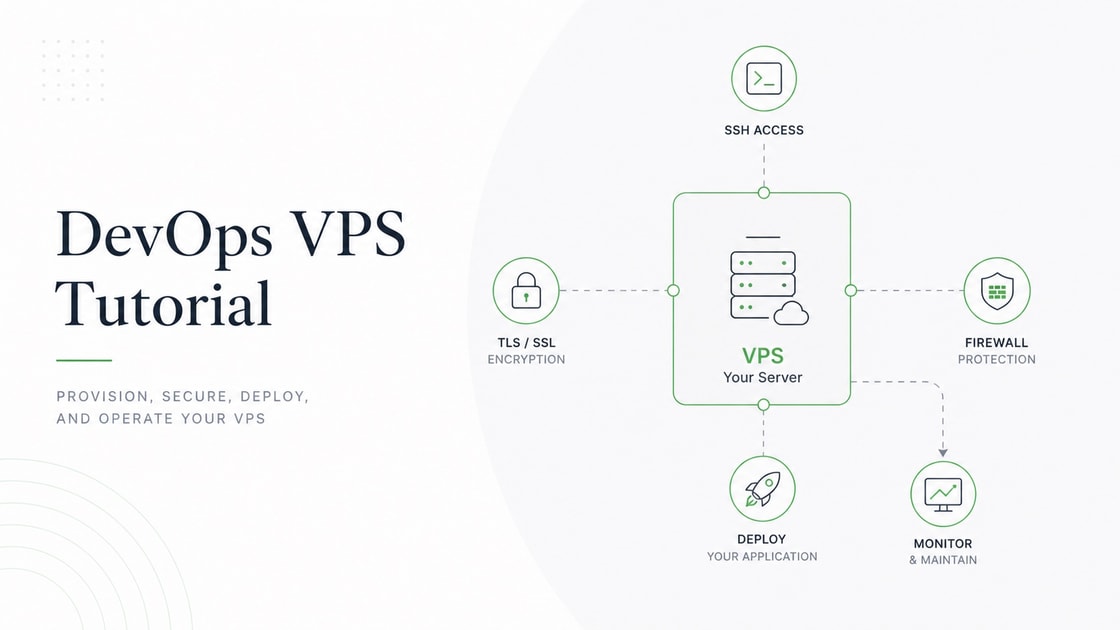
Throughout this tutorial we will use one recurring example: TaskNote, a small to-do list web application. TaskNote stores tasks in PostgreSQL (a popular open-source database) and serves an HTTP API (Application Programming Interface — the way programs talk to each other) that…

- Published on
A note before section 1
Throughout this tutorial we will use one recurring example: TaskNote, a small to-do list web application. TaskNote stores tasks in PostgreSQL (a popular open-source database) and serves an HTTP API (Application Programming Interface — the way programs talk to each other) that a web page calls. One developer owns it. It has 200 daily users. We will deploy, secure, back up, and monitor TaskNote on a single rented Linux server through every section of this guide.
We will recommend a default stack so you do not freeze on choice: Ubuntu 24.04 LTS + Caddy + systemd + Docker (when needed) + restic + Netdata + Uptime Kuma + ufw + fail2ban + GitHub Actions + Cloudflare DNS. We explain each tool when it appears.
1. The Mental Model
A VPS (Virtual Private Server — a slice of a real server, rented by the month) gives you full control of a Linux machine. With control comes work. The work breaks into four jobs the box needs you to do.
- Keep it secure. Strangers will try to log in within minutes of boot.
- Keep it running. The app must restart on crash and survive reboots.
- Get new code on it safely. Deploys must not break what already works.
- Recover when something breaks. Backups, restore drills, and clear logs.
Think of it like… owning a small shop. You lock the door at night (security), keep the lights on (uptime), restock the shelves (deploys), and keep insurance for fires and floods (backups). All four matter. Skip one and the shop fails.
In software, this looks like… TaskNote needs a firewall and SSH keys (job 1), a process manager so the API restarts on crash (job 2), a deploy script that pushes new code without downtime (job 3), and a daily off-site backup of the database (job 4).
Why it matters: every section in this tutorial maps to one of these four jobs. If a section confuses you, ask: which job is this serving? That is the anchor.
Quick preview — the mindmap names practices for each job. We define each practice in later sections:
- SSH keys — log in with a file, not a password.
- Firewall — only certain doors are open.
- systemd — Linux's process manager, restarts services on crash.
- CI/CD — code pushed to Git ships to the server automatically.
- restic — modern, encrypted backup tool.
- Uptime Kuma — checks if your URL is alive from outside.
Don't confuse with… DevOps is the set of practices. SRE (Site Reliability Engineering) is a related role at large companies. On a one-VPS team, they are the same thing.
2. The VPS Landscape
A VPS is a virtual machine on a shared physical server. The provider gives you a public IP address, a root login, and a guaranteed slice of CPU, RAM, and disk. Everything above the kernel is yours: which services run, which ports are open, who can log in.
Think of it like… renting a small flat in a building. The landlord owns the building (the physical server). You hold the keys to your flat (the VPS). You decide the furniture, the locks, the cleaning schedule.
In software, this looks like… TaskNote will run on a VPS with 4 GB of RAM, 2 virtual CPUs, and 80 GB of disk for €5 per month. That is enough for 200 daily users with room to grow.
What you do not get on a VPS
A managed cloud might give you a database service, a load balancer, or a container runner. A VPS gives you none of that. You are the management. The trade-off: less monthly cost and full control, but more work to set up and operate.
Sizing rules of thumb
- RAM is the first thing to run out. A web app, a database, and a reverse proxy on the same 1 GB box will swap and slow down. Pick at least 2 GB for any real app, 4 GB if a database lives alongside.
- CPU bursts forgive. Most VPS plans let you spike for short windows.
- Disk fills slowly until it suddenly doesn't. Logs, backups, Docker images, and old releases pile up. Set up monitoring (Section 10) before you need it.
Provider notes
Common VPS providers: Hetzner (best price-performance in Europe), DigitalOcean (simple UI, many tutorials), Linode / Akamai (stable, US-friendly), Vultr (many regions, hourly billing), Contabo (very cheap, slower disks), OVH (French, large catalog), Scaleway (French, dev-friendly).
Cost ranges in concrete numbers: a usable VPS today costs €4 to €20 per month. Below that, you get a toy box. Above that, you should ask if you really need a bigger single VPS or a second one.
How to verify you picked well
After your first month, check the bill. Then check htop (Section 4) at peak. If RAM is below 50 % used and the bill is small, you sized correctly. If RAM is above 80 %, plan an upgrade.
3. First Contact — Getting On the Box Safely
Your VPS just booted. The provider sent you an IP address and either a temporary root password or an initial SSH key. Within 30 minutes, you should lock it down. Strangers run automated scans on every public IP, all the time.
Real situation — unsecured VPSes are scanned for SSH brute-force attempts within minutes of boot. The default
rootuser with a weak password is the most common target. Disable that path before you do anything else.
We define every term as we use it.
- SSH (Secure Shell — encrypted login to a remote server, on TCP port 22) is how you talk to the VPS.
- An SSH key is a pair of files: a private key (stays on your laptop, never shared) and a public key (copied to the server, like a lock that only your private key opens).
- The root user (the all-powerful admin account on Linux) can do anything. We will stop using it for daily work.
- A non-root user (a normal account with limited power) is who you should be most of the time.
- sudo (Substitute User DO — runs one command as root) lets the non-root user do admin work when needed.
- A firewall (software that decides which network connections are allowed) blocks every door except the ones you open.
- A port (a numbered channel on a network address) is the door number. SSH uses 22, HTTP uses 80, HTTPS uses 443.
The seven first steps
Step 1 — log in with the provider's initial method
The provider's email gives you ssh root@<your-ip>. Run that on your laptop. Type the temporary password if asked.
# Open a terminal on your laptop and SSH in as root.
ssh root@203.0.113.10
Verify: the prompt now shows root@<hostname>:~#. You are inside the VPS.
Step 2 — create a non-root user with sudo rights
Running as root all day is dangerous. One typo can wipe the box. We make a normal user and grant them admin power on demand.
# Create a user named "deploy" and add them to the sudo group.
adduser deploy
usermod -aG sudo deploy
Verify: id deploy shows sudo in the group list.
Step 3 — generate an SSH keypair on the laptop, copy the public key
A password can be guessed. A 4 KB SSH key cannot. We generate a key on the laptop and put the public half on the VPS.
# Run this on your LAPTOP, not the server.
ssh-keygen -t ed25519 -C "you@laptop"
ssh-copy-id deploy@203.0.113.10
Verify: ssh deploy@203.0.113.10 logs in without asking for a password.
Step 4 — disable password login and root login over SSH
Now that key login works, we close the password door. We also close the root door so no one can log in as root over SSH.
Edit /etc/ssh/sshd_config (or a file in /etc/ssh/sshd_config.d/) and set:
PermitRootLogin no
PasswordAuthentication no
Then reload the SSH service:
# Tell the SSH server to re-read its config.
sudo systemctl reload ssh
Verify: open a second terminal, try ssh root@<ip> — it must fail. Keep the first terminal open in case you locked yourself out by mistake.
Step 5 — install ufw and allow only SSH, HTTP, HTTPS
A firewall blocks every port except the ones you list. ufw (Uncomplicated Firewall — a simple front-end for Linux's firewall rules) is the friendliest one for beginners.
# Allow our three required ports, then turn the firewall on.
sudo apt update && sudo apt install -y ufw
sudo ufw allow 22/tcp
sudo ufw allow 80/tcp
sudo ufw allow 443/tcp
sudo ufw enable
Verify: sudo ufw status lists exactly those three rules and shows Status: active.
Step 6 — update everything and enable unattended security upgrades
A patched kernel and patched OpenSSL are the cheapest defense you have. We update once now, then let the system patch security holes automatically.
# Apply all current updates, then turn on automatic security patching.
sudo apt update && sudo apt upgrade -y
sudo apt install -y unattended-upgrades
sudo dpkg-reconfigure -plow unattended-upgrades
Verify: systemctl status unattended-upgrades shows active (running).
Step 7 — set the hostname and timezone
A clear hostname helps when you have ten VPSes. The right timezone makes log timestamps make sense.
# Pick a name and a region.
sudo hostnamectl set-hostname tasknote-prod-1
sudo timedatectl set-timezone Europe/Lisbon
Verify: hostnamectl and timedatectl show the new values.
The new-VPS checklist (run on every box)
- Created non-root user with sudo.
- SSH key login works.
- Password and root SSH login disabled.
- ufw enabled, only required ports open.
- System fully updated.
- Unattended-upgrades running.
- Hostname and timezone set.
4. The Base Layer
Before any application code touches the box, a healthy server has a few baseline pieces in place. Each takes minutes and prevents a known failure mode.
Swap
Swap (a file on disk that Linux uses when RAM is full) keeps the box alive when memory spikes. Without swap, the kernel will kill processes to free memory.
Think of it like… an emergency parking lot. Slower than the main one, but better than turning cars away.
In software, this looks like… TaskNote during a backup job uses 200 MB extra RAM. With 2 GB swap, the box absorbs the spike. Without swap, the database might be killed.
# Create a 2 GB swap file and turn it on permanently.
sudo fallocate -l 2G /swapfile
sudo chmod 600 /swapfile
sudo mkswap /swapfile
sudo swapon /swapfile
echo '/swapfile none swap sw 0 0' | sudo tee -a /etc/fstab
Verify: free -m shows a Swap line with the right size.
Sizing rule: match swap to RAM up to 4 GB; above that, 2–4 GB swap is enough.
Time sync
Clocks drift. A server with the wrong time breaks TLS certificates, log correlation, and rate limits. systemd-timesyncd (the time-sync daemon built into modern Ubuntu) is enabled by default; you should confirm.
# Confirm the time service is running and synced.
timedatectl status
Verify: the output shows System clock synchronized: yes.
Log rotation
Logs grow forever if nothing trims them. logrotate (a tool that compresses and deletes old log files on a schedule) ships with Ubuntu and runs daily. Most packages drop a config in /etc/logrotate.d/.
Verify: ls /etc/logrotate.d/ shows entries for rsyslog, apt, and any service you install later.
fail2ban
fail2ban (a tool that bans IP addresses after too many failed logins) is your second line of defense after SSH key login. Even with passwords disabled, scanners hammer port 22. fail2ban makes them give up.
# Install and start fail2ban with default rules.
sudo apt install -y fail2ban
sudo systemctl enable --now fail2ban
Verify: sudo fail2ban-client status sshd shows the SSH jail active.
Resource visibility
Three commands cover 90 % of "is this box healthy?" questions:
htop— live view of CPU and RAM use, with a colored bar.df -h— disk space per mount point.du -sh *— disk space used by each folder in the current directory.free -m— RAM and swap in megabytes.
Install htop once: sudo apt install -y htop. The others are built in.
How to verify the base layer is healthy
Run these four commands and check each line of output:
-
free -m— RAM has free space, swap is configured. -
df -h— root partition is below 80 % full. -
timedatectl— clock is synchronized. -
sudo fail2ban-client status sshd— jail is active.
5. The Building Blocks of a Server
A working server is a small chain of programs. Each one has a job. Once you can name the parts, you can debug them.
Reverse proxy + TLS terminator
A reverse proxy (a server that sits in front of your app and forwards requests to it) answers the public internet, handles TLS (Transport Layer Security — encrypts traffic between browser and server), and routes to the right app.
Think of it like… a hotel reception. Guests arrive at the door, the receptionist hands them off to the right room.
In software, this looks like… Caddy listens on ports 80 and 443. When a request hits
tasknote.example.com, Caddy decrypts it and passes it to the TaskNote API onlocalhost:8080. The app never sees the public internet directly.Why it matters: TLS, HTTP/2, and HTTPS redirects are solved problems. The reverse proxy solves them in one place so your app does not have to.
Common tools: Caddy (auto-TLS, simplest), Nginx + certbot (industry standard, more knobs), Traefik (container-friendly, dynamic config), HAProxy (focus on load balancing).
Real situation — TaskNote moves to a real domain. Caddy gets a free TLS certificate from Let's Encrypt the first time anyone visits
https://tasknote.example.com. The next renewal happens automatically 30 days before expiry.
Application process
The thing you wrote: a Node.js server, a Python script, a Go binary, a Rails app. Its only job is to answer requests on a local port. It should not handle TLS, ports below 1024, or restart logic — those belong to the reverse proxy and the process manager.
Process manager
A process manager (software that starts your app on boot, restarts it on crash, and captures its logs) turns a script into a service. systemd (the default Linux process manager since 2015) is built in.
Think of it like… a building manager who keeps the lights on. If a bulb burns out, they replace it. If the building reboots, they turn the lights back on.
Common tools: systemd (default on Linux), PM2 (Node.js focused, friendlier UI), supervisord (Python-based, simple config).
Database
Where data sleeps. On a small VPS, the database often runs on the same box as the app. It is cheaper and simpler. The trade-off: one box failing takes both down.
Common tools: PostgreSQL (rich features, sane defaults), MySQL / MariaDB (huge ecosystem), SQLite (file-based, no server needed), Redis (in-memory, very fast).
Real situation — TaskNote uses PostgreSQL on the same VPS as the API. Daily backups are uploaded off-site (Section 9). When traffic grows past one VPS, the database moves to its own VPS first.
Cache
A cache (a fast store that holds copies of recent answers) is a tool you add when measurements show you need it. Adding Redis on day one is a common waste.
Don't confuse with… a database keeps data forever; a cache keeps recent answers for speed.
Background worker
Some work should not happen during the request. Sending an email, resizing an image, generating a report — these belong to a background worker (a separate process that picks up jobs from a queue).
For TaskNote at small scale, cron (the built-in Linux scheduler) runs a daily job to email a summary. When jobs grow more complex, a queue (Redis-backed, for example) replaces cron.
Static files and object storage
Static files (files that never change per user: CSS, JavaScript, images) can live on the VPS disk and be served by Caddy. Once you have user-uploaded files (avatars, attachments) at scale, object storage (a service that stores files behind an HTTP API) is the right home.
Common tools: Backblaze B2 (cheap, S3-compatible), Cloudflare R2 (no egress fees), Hetzner Storage Box (simple, EU-based).
DNS
DNS (Domain Name System — turns names like example.com into IP addresses) is how the internet finds your VPS. We cover records, TTL (Time To Live — how long DNS answers are cached), and propagation in Section 7.
Logs
By default, every systemd service writes logs to the journal (systemd's built-in log database). You read them with journalctl (the command to query the journal).
How a request flows
How to verify you have the building blocks straight
Open a notebook. For TaskNote on your VPS, write down which program plays each role: reverse proxy, app process, process manager, database, logs. If you can name each, you can debug each.
6. Running Your App on the Box
You have a binary or a script. You want it to run forever, restart on crash, and start on boot. There are two paths. Both are valid. Pick the one that matches your app.
Track A — bare-metal with systemd
A systemd service unit (a small text file that tells systemd how to run your program) is the simplest path for a single binary or a single process.
We need a unit file, an environment file for secrets, and the binary itself.
Think of it like… a recipe card pinned to the fridge: how to start the dish, what ingredients (env vars) to use, what to do if it fails.
# /etc/systemd/system/tasknote.service
[Unit]
Description=TaskNote API
After=network.target postgresql.service

[Service]
Type=simple
User=tasknote
WorkingDirectory=/srv/tasknote
EnvironmentFile=/srv/tasknote/.env
ExecStart=/srv/tasknote/tasknote-api
Restart=on-failure
RestartSec=5

[Install]
WantedBy=multi-user.target
The EnvironmentFile holds secrets. Permissions matter:
# Lock the env file so only the service user can read it.
sudo chown tasknote:tasknote /srv/tasknote/.env
sudo chmod 600 /srv/tasknote/.env
Then enable and start the service:
# Reload systemd, enable on boot, start now.
sudo systemctl daemon-reload
sudo systemctl enable --now tasknote
Verify:
systemctl status tasknoteshowsactive (running).journalctl -u tasknote -n 50shows the app's startup log lines.curl http://127.0.0.1:8080/healthreturns the expected response.
Track B — Docker + docker-compose
A container (a packaged app with all its dependencies, run in isolation) is the right choice when:
- The app has many parts (API, worker, database, cache).
- The dependency setup is painful (Python C extensions, Ruby gem builds).
- You want the same setup on your laptop and the VPS.
It is the wrong choice when:
- The app is one tiny static binary.
- You will never run more than one process.
- You are not ready to learn another tool.
Common tools: Docker (default container runtime), Podman (daemonless, drop-in replacement), docker-compose (declares a multi-container app in YAML).
A worked example: TaskNote with PostgreSQL behind Caddy.
# /srv/tasknote/docker-compose.yml
services:
  api:
    image: ghcr.io/you/tasknote-api:1.4.0
    restart: unless-stopped
    env_file: .env
    depends_on: [db]
    ports: ["127.0.0.1:8080:8080"]
  db:
    image: postgres:16
    restart: unless-stopped
    environment:
      POSTGRES_PASSWORD_FILE: /run/secrets/db_pw
    volumes:
      - dbdata:/var/lib/postgresql/data
    secrets: [db_pw]
volumes:
  dbdata:
secrets:
  db_pw:
    file: ./db_password.txt
A volume (a folder managed by Docker that survives container restarts) keeps the database data safe. A bind mount (a folder on the host mapped into the container) is the alternative when you want the path on the host directly. Use volumes for state, bind mounts for config files.
# Start the stack in the background.
sudo docker compose up -d
Verify:
sudo docker compose psshows both services asUp.sudo docker compose logs --tail 100 apishows clean startup.- Caddy proxies to
127.0.0.1:8080and the page loads.
When to pick which
The trade-off is honest: systemd is the lightest tool that works. Docker buys reproducibility but adds a moving part to debug. For TaskNote with one API + one database, either is fine. Pick the one your team will operate calmly at 2 a.m.
How to verify the app is really running
- Process is up:
systemctl statusordocker compose ps. - Logs are clean:
journalctl -u <name>ordocker compose logs. - Health endpoint answers:
curl http://127.0.0.1:<port>/health. - Restart test:
sudo reboot. After reboot, the app must come back without you logging in.
7. Domains, DNS, and TLS
A user types tasknote.example.com. A green padlock appears. Behind that one second, several things happened. We unpack them.
Buying a domain
A registrar (a company that sells domain names) sells example.com for €5–€20 per year. Examples: Namecheap, Porkbun, Cloudflare Registrar.
DNS records explained
DNS is a phonebook. The names are domains. The numbers are IP addresses. The phonebook entries are records.
Think of it like… a postal address system. The domain name is "Anna's Bakery, Lisbon". The IP address is the GPS coordinates. DNS turns one into the other.
Two records cover most cases:
- A record — maps a name to an IPv4 address.
tasknote.example.com → 203.0.113.10. - CNAME record — maps a name to another name.
www.tasknote.example.com → tasknote.example.com.
TTL (Time To Live — how long a DNS answer is cached) decides how fast a change propagates. A 300-second TTL means a change spreads within 5 minutes. A 24-hour TTL means a full day. Use a small TTL while you make changes, raise it once stable.
Cloudflare DNS — proxied vs DNS-only
Cloudflare DNS (a free, fast DNS provider with optional traffic proxy) is a strong default. Each record has a toggle:
- DNS-only — Cloudflare answers the lookup, then the user talks straight to your VPS.
- Proxied — every request goes through Cloudflare first. You gain DDoS protection and a CDN. You lose direct visibility of the user's IP unless you forward it.
Trade-off: proxied is safer and faster for static content; DNS-only is simpler and shows real client IPs in your logs.
TLS — the green padlock
TLS encrypts the connection. A certificate (a signed file that proves you own the domain) makes the browser trust your server. Let's Encrypt (a free, automated certificate authority) issues certificates valid for 90 days.
Caddy auto-TLS is the simplest path: Caddy asks Let's Encrypt for a certificate the first time someone visits, then renews automatically. The full Caddyfile for TaskNote:
# /etc/caddy/Caddyfile
tasknote.example.com {
    reverse_proxy 127.0.0.1:8080
}
That is the entire config. Caddy gets the certificate, redirects HTTP to HTTPS, and proxies to the app.
The alternative is Nginx + certbot: write the Nginx config by hand, then run certbot --nginx to get the certificate. More work, more knobs, more to break. We prefer Caddy for beginners.
The TLS handshake at a beginner level
How to verify it worked
dig tasknote.example.comreturns your VPS IP.curl -I https://tasknote.example.comreturnsHTTP/2 200.- The browser shows a padlock with no warning.
8. Deploys and Releases
Getting new code on the box safely. There are four levels. Climb them in order. Stop at the level that fits your needs and your stress.
Level 1 — manual
SSH in, pull the new code, restart the service.
# On the server.
cd /srv/tasknote
git pull
sudo systemctl restart tasknote
When it is fine: a personal article with no real users. The trade-off: every deploy is a snowflake. You will forget a step at the worst time.
Level 2 — scripted
A shell script on your laptop SSHes in and runs the steps. The script is idempotent (running it twice produces the same result as running it once).
#!/usr/bin/env bash
# deploy.sh — run from your laptop.
set -euo pipefail
ssh deploy@tasknote-prod-1 '
  cd /srv/tasknote
  git pull --ff-only
  sudo systemctl restart tasknote
  sleep 2
  curl -sf http://127.0.0.1:8080/health
'
set -euo pipefail makes the script stop on any error. The trailing health check fails the script if the app did not come back up. The trade-off: deploys still happen from one laptop. If your laptop is at home, you deploy from home.
Level 3 — CI/CD
CI/CD (Continuous Integration / Continuous Deployment — code shipped automatically when tests pass) runs on push to the main branch. Tests run, an artifact is built, the artifact is shipped to the server.
Common tools: GitHub Actions (free for public repos, integrated), GitLab CI (self-hosted option), Drone (lightweight, container-based), Woodpecker (community fork of Drone), Jenkins (old, very flexible, more work).
A worked GitHub Actions workflow:
# .github/workflows/deploy.yml
name: deploy
on:
  push:
    branches: [main]
jobs:
  deploy:
    runs-on: ubuntu-latest
    steps:
      - uses: actions/checkout@v4
      - name: Test
        run: go test ./...
      - name: Build
        run: go build -o tasknote-api ./cmd/api
      - name: Ship
        env:
          KEY: ${{ secrets.DEPLOY_KEY }}
        run: |
          echo "$KEY" > k && chmod 600 k
          scp -i k -o StrictHostKeyChecking=no \
            tasknote-api deploy@tasknote-prod-1:/srv/tasknote/tasknote-api.new
          ssh -i k deploy@tasknote-prod-1 '
            mv /srv/tasknote/tasknote-api.new /srv/tasknote/tasknote-api &&
            sudo systemctl restart tasknote
          '
The deploy key is stored as a secret (an encrypted variable in the CI provider, never visible in logs).
Level 4 — zero-downtime
Zero-downtime deploy (new version takes over without dropping any in-flight request) matters when users notice the gap. Two simple strategies:
- Blue/green with Caddy. Run two copies of the app on two different local ports. Flip Caddy's
reverse_proxybetween them. Old version stays alive for a minute as a backup. - Rolling restart with docker compose.
docker compose up -dwith a new image tag pulls and restarts containers one at a time.
Rollback (returning to the previous working version) must be a single command. If git revert && deploy is your rollback, write that down. If a Docker tag is your rollback, write down which tag.
A CI/CD pipeline at a glance
How to verify the deploy worked
- The version endpoint (
/version) reports the new commit hash. - Logs show the new process started and accepted requests.
- The smoke test (one critical user flow) passes from your laptop.
If any of those fails, roll back first, debug second.
9. Backups and Restore
The chapter that saves your career. Hardware fails. Provider regions go offline. You will, eventually, run DROP TABLE on the wrong terminal. Backups are not optional.
The 3-2-1 rule in plain words
- 3 copies of important data: the live one plus two backups.
- 2 different storage types: disk on the VPS plus an off-site provider.
- 1 copy off-site: in a different country, on a different company.
Think of it like… keeping money in three places: your wallet, a bank, and a safe at home. Lose one, the other two cover you.
Database backup with pg_dump on cron
For PostgreSQL, pg_dump (a tool that exports the whole database to a file) is the simple, robust path.
#!/usr/bin/env bash
# /usr/local/bin/backup-tasknote-db.sh
set -euo pipefail
DATE=$(date +%F)
sudo -u postgres pg_dump tasknote | gzip > "/srv/backups/db/tasknote-$DATE.sql.gz"
find /srv/backups/db -mtime +14 -delete  # keep 14 days locally
Run it daily via cron (the built-in scheduler):
# Edit with: sudo crontab -e
15 3 * * * /usr/local/bin/backup-tasknote-db.sh
For MySQL or MariaDB, use mysqldump the same way.
Off-site backup with restic
restic (a modern, encrypted backup tool with deduplication) takes the daily SQL dumps plus any user-uploaded files and pushes them off-site. We use Backblaze B2 (cheap, S3-compatible object storage) as the destination — no AWS S3, no Google Cloud Storage.
# Run once to create the encrypted repo.
export B2_ACCOUNT_ID=...; export B2_ACCOUNT_KEY=...
export RESTIC_REPOSITORY=b2:tasknote-backups:/
export RESTIC_PASSWORD=$(openssl rand -base64 32)
restic init
echo "$RESTIC_PASSWORD" > /root/.restic-password  # store somewhere safe!
chmod 600 /root/.restic-password
Daily backup script (run after the SQL dump):
#!/usr/bin/env bash
# /usr/local/bin/restic-backup.sh
set -euo pipefail
export B2_ACCOUNT_ID=...; export B2_ACCOUNT_KEY=...
export RESTIC_REPOSITORY=b2:tasknote-backups:/
export RESTIC_PASSWORD_FILE=/root/.restic-password

restic backup /srv/backups/db /srv/tasknote/uploads
restic forget --keep-daily 14 --keep-weekly 8 --keep-monthly 12 --prune
Common backup tools: restic (modern, encrypted, deduplicated), BorgBackup (similar features, SSH-only repos), Duplicity (older, GnuPG-based), rsync (file copy, no encryption), rsnapshot (rsync + hard-link snapshots).
Common off-site storage: Backblaze B2 (cheap, S3-compatible), Wasabi (no egress fees, S3-compatible), Hetzner Storage Box (EU, simple), rsync.net (SSH-native, sysadmin-friendly).
The backup pipeline
Restore drills — the part everyone skips
A backup you have not restored is a wish, not a backup. Once a quarter, do a real drill:
- Spin up a fresh empty VPS.
- Install Postgres.
- Pull the latest restic snapshot to that VPS.
- Restore the SQL dump into the empty database.
- Run TaskNote against the restored database.
- Confirm the data is there and recent.
- Write down how long it took. That is your RTO (Recovery Time Objective — how long a real recovery takes).
How to verify backups work
- Yesterday's snapshot exists in B2 (
restic snapshots). - The local dump file is non-empty and current.
- The most recent quarterly drill is in the calendar with a successful note.
10. Monitoring and Alerting
You cannot fix what you cannot see. Monitoring has three tiers. Each tier answers a different question.
Tier 1 — uptime
Uptime monitoring answers: is the URL responding right now, from outside my network?
Uptime Kuma (a self-hosted uptime checker with a simple UI) runs on a different server (or another VPS) and pings TaskNote every minute. If three checks in a row fail, it sends an alert. Running it on the same VPS would be useless — if the VPS dies, the monitor dies too.
Common tools: Uptime Kuma (self-hosted, open source), Better Uptime (hosted, free tier), Healthchecks.io (cron-job focused), StatusCake (simple hosted).
Tier 2 — resources
Resource monitoring answers: how is the box doing inside? CPU, RAM, disk, network, disk I/O.
Netdata (a zero-config metrics agent with a built-in dashboard) installs in one command and shows live charts. For TaskNote, we set three alert thresholds:
- Disk above 85 % full → warn.
- RAM above 90 % used for more than 5 minutes → warn.
- Load average above 4× the CPU count for 10 minutes → warn.
Common tools: Netdata (zero-config, beautiful charts), Prometheus + Grafana (industry standard, more setup), Zabbix (older, very complete), Glances (simple terminal UI).
Tier 3 — logs
Log monitoring answers: what is the app saying when something is wrong?
For one VPS, journalctl (systemd's log query tool) is enough. Look for spikes:
# Errors from TaskNote in the last hour.
journalctl -u tasknote --since "1 hour ago" -p err
When you outgrow one VPS, Loki + Grafana (a log aggregation stack from the Prometheus family) or Vector (log shipping pipeline) collects logs from many machines.
Avoiding alert fatigue
Anything that wakes you at 3 a.m. must be both urgent (the system is broken now) and important (real users are affected). The wake-me list is short:
- Site is down (uptime fails).
- Disk is above 95 %.
- Database is unreachable.
Everything else (CPU spike at noon, a slow query, a deploy warning) is a dashboard, not a page. The trade-off: looser alerts mean you might miss a small problem; tighter alerts mean you ignore the pager.
The three tiers at a glance
How to verify monitoring works
- Stop TaskNote on purpose (
sudo systemctl stop tasknote). Within 3 minutes, Uptime Kuma sends an alert. - Fill the disk to 90 % with a test file. Netdata's threshold fires.
-
journalctl -u tasknote -p err --since todayreturns recent error lines if any.
Restart the service after the test.
11. Security Hardening Checklist
A flat, scannable list. Revisit this section every quarter and after every incident.
SSH
- Password authentication disabled.
- Root login disabled.
- Only SSH keys are accepted.
- Each laptop has its own key (so revoking one is easy).
- Optional: SSH on a non-default port (light obfuscation, not security).
- How to check:
sudo grep -E '^(PasswordAuthentication|PermitRootLogin)' /etc/ssh/sshd_config.
Firewall
- ufw active, default-deny inbound.
- Only required ports open (22, 80, 443).
- Database ports (5432, 3306) are NOT exposed to the public.
- How to check:
sudo ufw status verbose.
System updates
- unattended-upgrades is running.
- Unused packages removed (
apt autoremove). - You reboot for kernel upgrades within 7 days (or use
livepatchif available). - How to check:
sudo unattended-upgrade --dry-run -d.
App secrets
- No secrets in Git. None.
-
.envfiles are mode 600, owned by the service user. - CI/CD secrets stored in the CI's encrypted vault.
- How to check:
git grep -E 'PASSWORD|SECRET|API_KEY'should match only template files.
File permissions
- App data directory owned by the service user, not root.
-
~/.ssh/is mode 700;~/.ssh/authorized_keysis mode 600. - No world-writable files (
find / -xdev -type f -perm -0002 2>/dev/null).
fail2ban / CrowdSec
- fail2ban running, SSH jail active.
- Banned IP list is non-empty after a week of running.
- Common tools: fail2ban (local, log-based bans), CrowdSec (community-shared block list).
Audit logs
-
auth.logis being written and rotated. -
whoandlastshow only expected users.
Principle of least privilege (give every account the minimum power needed)
- Each app has its own Linux user.
- The app's user cannot SSH in (its shell is
/usr/sbin/nologin). - Backups can read but not modify production data where possible.
12. A Standard VPS Layout
Convention beats configuration. When you have ten VPSes a year from now, a consistent layout means you log into any of them and instantly know where to look.
We propose this layout. Copy it on every new server.
| Path | What lives there |
|---|---|
/etc/systemd/system/<app>.service | Service unit files |
/srv/<app>/ | App code, env file, data |
/srv/<app>/uploads/ | User-uploaded files (if any) |
/srv/backups/db/ | Daily SQL dumps |
/srv/backups/restic/ | Local restic cache (optional) |
/var/log/<app>/ | Only if the app refuses to log to stdout |
~/.ssh/ | SSH keys, mode 700 |
/etc/caddy/Caddyfile | Reverse proxy config |
/usr/local/bin/<script>.sh | Operational scripts (deploy, backup) |
/etc/cron.d/<app> | Scheduled jobs for that app |
Naming conventions
- Hostnames:
<app>-<env>-<n>—tasknote-prod-1,tasknote-staging-1. - Service names: lowercase app name —
tasknote,tasknote-worker. - DNS:
app.example.comfor production,staging-app.example.comfor staging, neverprod-app.example.com(the absence of a prefix means production). - Docker images:
ghcr.io/you/<app>:<git-sha>— tag with the commit, neverlatestin production.
Why this layout pays off
Real situation — at 3 a.m. you get paged for
notes-prod-2. You have never logged into that box in your life. You SSH in, typecd /srv/notes, and the layout matches every other server you own. The deploy script is in/usr/local/bin/. The unit file is in/etc/systemd/system/. You fix the problem in 10 minutes instead of 90.
How to verify a server matches the layout
After every install, run:
ls /srv && ls /etc/systemd/system | grep -v '@' && ls /usr/local/bin
If the layout differs, fix it before you forget.
13. Three Worked Examples
Three small, realistic apps. Each one shows the whole picture: provider + size + cost + layout + deploys + backups + monitoring.
Example A — TaskNote (Node.js + PostgreSQL behind Caddy)
- Provider + size: Hetzner CX22, 2 vCPU, 4 GB RAM, 40 GB disk — €4.59/month.
- Layout:
/srv/tasknote/with a Node.js binary,.env, and PostgreSQL on the same box. - Process manager: systemd unit
tasknote.servicefor the API,postgresql.service(built-in) for the DB. - Reverse proxy: Caddy on 80/443,
tasknote.example.com → 127.0.0.1:8080. - Deploys: GitHub Actions builds the binary and SCPs it. Restart is
sudo systemctl restart tasknote. - Backups: nightly
pg_dump+ restic to Backblaze B2. 14 daily, 8 weekly, 12 monthly snapshots. - Monitoring: Uptime Kuma on a separate €4 VPS pings the URL every minute. Netdata on the box.
Example B — A static site (Hugo or Astro behind Caddy)
- Provider + size: DigitalOcean basic droplet, 1 vCPU, 1 GB RAM, 25 GB disk — $6/month.
- What it serves: a static article generated by Hugo or Astro on the developer's laptop.
- Layout:
/srv/article/public/with HTML, CSS, JS, images. - No app process — Caddy serves files directly. No database, no worker.
- Caddy config:
article.example.com {
    root * /srv/article/public
    file_server
    encode zstd gzip
}
- Deploys:
rsyncfrom laptop or a one-step GitHub Action. - Backups: the source lives in Git. The rendered site is reproducible. We back up only
/etc/caddy/and the post images. - Monitoring: Uptime Kuma URL check is enough. No Netdata needed at this scale.
Why so small? A static site with a few hundred visitors a day uses 0.1 % of any modern VPS. Spending more is a waste.
Example C — Python worker app (docker-compose on Contabo)
- Provider + size: Contabo VPS S, 4 vCPU, 8 GB RAM, 200 GB disk — €5.99/month.
- App: a Python web API + a Redis queue + 2 background workers that resize uploaded images.
- Why Docker here: five processes, Python C-extension dependencies. systemd would mean five unit files. docker-compose is one file.
- Layout:
/srv/photo/docker-compose.yml,/srv/photo/.env,/srv/photo/uploads/(bind mount).
# Excerpt of docker-compose.yml
services:
  api:    { image: photo-api:1.0,    restart: unless-stopped }
  redis:  { image: redis:7,          restart: unless-stopped }
  worker: { image: photo-worker:1.0, restart: unless-stopped, scale: 2 }
- Reverse proxy: Caddy on the host (not in compose), so TLS lives in one place.
- Deploys: a tag in
ghcr.iotriggersdocker compose pull && docker compose up -d. - Backups: restic snapshots
/srv/photo/uploads/; Redis is a cache, so we do not back it up. - Monitoring: Uptime Kuma + Netdata. Disk alert at 80 % because uploads grow.
14. Anti-Patterns and Common Traps
Short, punchy, scannable. If you see yourself doing one of these, fix it today.
- Running the app as root. A bug becomes a takeover. Always use a dedicated service user.
- No firewall. Every port that an attacker can reach is an attack surface. Default-deny.
- SSH open to the world with password login. Bots will find you in minutes. Keys only.
- No backups. Hardware fails. Hands slip. There is no recovery without a backup.
- Untested backups. Same thing. A backup you have never restored is a wish.
- Manual edits on the server with no record. A file changed at 2 a.m. is the file no one can debug at 9 a.m. Keep configs in Git.
- Deploying on Friday afternoon. If it breaks, you are alone all weekend. Deploy on Tuesday morning.
- Single VPS for staging and production. A staging accident becomes a production incident. Even a €4 second VPS is enough.
- Panic-restarting instead of reading logs. A reboot hides the symptom and clears the journal you need.
journalctl -u <svc> -n 200first, restart only after you know why. - Secrets in Git. Once committed, treat as leaked. Rotate and use a secret manager or
.envoutside the repo. - Monitoring nothing because "it's a small app." The smaller the team, the more monitoring matters — you have no on-call backup.
- Pinning Docker tags as
latest. A surprise rollout on the next pull. Pin to a version or a SHA. - Letting the disk fill. Postgres refuses writes on a full disk and the app stops cold. Alert at 80 %, fix at 85 %.
15. What to Read Next
A tight list to grow beyond a single VPS, when the time comes.
- The Phoenix Project — Gene Kim et al. Why DevOps exists, told as a novel.
- Site Reliability Engineering — Google. Free online. Heavy, but the chapter on alerting is gold.
- Ansible documentation. Once you have three VPSes, configuring them by hand stops scaling. Ansible is the right next tool — not Kubernetes.
- The Linux Command Line — William Shotts. Free PDF. Fills any gaps from this primer.
- Designing Data-Intensive Applications — Martin Kleppmann. When TaskNote's database starts to hurt.
- Kamal documentation. A Ruby-flavored deploy tool that many teams use to avoid Kubernetes. Worth a read once you have multi-VPS apps.
- CrowdSec documentation. A more modern alternative to fail2ban with a shared block list.
- systemd by example — Seth Kenlon's series. When your services grow timers, sockets, and dependencies.
When (if ever) to look at Kubernetes? When you have at least five servers, multiple teams, and a person whose job is the cluster. Otherwise, it is overhead you do not need.
16. Glossary
- A record — DNS entry mapping a name to an IPv4 address.
- alerting — automatic notification when a metric crosses a threshold.
- Ansible — configuration management via SSH.
- API (Application Programming Interface) — the way programs talk to each other.
- AlmaLinux — community RHEL-compatible Linux distribution.
- Backblaze B2 — cheap, S3-compatible object storage.
- backup — a copy of data kept for recovery.
- bind mount — a host folder mapped into a container.
- BorgBackup — encrypted, deduplicated backups, SSH-only repos.
- Caddy — reverse proxy with auto-TLS, simplest default.
- CapRover — self-hosted PaaS-like deploy tool.
- certbot — Let's Encrypt client for Nginx and others.
- certificate — signed file proving you own a domain.
- CI/CD (Continuous Integration / Continuous Deployment) — pipeline that ships code automatically.
- Cloudflare DNS — free, fast DNS provider with optional proxy.
- CNAME — DNS entry mapping a name to another name.
- Coolify — open-source self-hosted Heroku-style PaaS.
- Contabo — very cheap VPS provider, slower disks.
- container — packaged app with its dependencies, run in isolation.
- cron — built-in Linux scheduler.
- CrowdSec — community-shared block list and detection engine.
- deSEC — free, privacy-focused DNS provider.
- DigitalOcean — simple-UI VPS provider, many tutorials.
- DNS (Domain Name System) — turns names into IP addresses.
- Docker — default container runtime.
- docker-compose — declares multi-container apps in YAML.
- Dokku — small, self-hosted Heroku-like deploy tool.
- domain name — human-readable address you buy from a registrar.
- Drone — lightweight, container-based CI server.
- Duplicity — older GnuPG-based backup tool.
- environment variable — a key-value pair available to a process.
- fail2ban — bans IPs after too many failed logins.
- firewall — software that decides which network connections are allowed.
- Fluent Bit — lightweight log forwarder.
- GitHub Actions — CI/CD integrated into GitHub.
- GitLab CI — CI/CD integrated into GitLab, self-hostable.
- Glances — simple terminal-based system monitor.
- HAProxy — focus on load balancing.
- Healthchecks.io — uptime checks specifically for cron jobs.
- Hetzner — best price-performance VPS provider in Europe.
- htop — interactive CPU and RAM monitor.
- idempotent — running it twice gives the same result as once.
- infrastructure as code — server setup defined in version-controlled files.
- Jenkins — old, very flexible CI server.
- journalctl — command to read systemd's log database.
- Kamal — deploy tool, multi-server without Kubernetes.
- Let's Encrypt — free, automated certificate authority.
- Linode (Akamai) — stable, US-friendly VPS provider.
- Loki — log aggregation in the Prometheus family.
- logs — text records of what a program did.
- log rotation — compressing and deleting old log files.
- lynis — Linux security auditing tool.
- MariaDB — community fork of MySQL.
- metrics — numeric measurements of a system over time.
- monitoring — watching the live state of a system.
- mosh — resilient SSH alternative for unstable networks.
- MySQL — popular open-source relational database.
- Netdata — zero-config metrics agent with live charts.
- Nginx — industry-standard reverse proxy and web server.
- Nomad — workload orchestrator from HashiCorp.
- OpenSSH — default SSH server and client on Linux.
- OVH — large French VPS and hosting provider.
- Podman — daemonless drop-in replacement for Docker.
- port — numbered network channel on an address.
- PostgreSQL — popular open-source database, rich features.
- process manager — software that runs and restarts your app.
- Prometheus — industry-standard metrics database.
- production — the environment real users hit.
- Rocky Linux — community RHEL-compatible Linux distribution.
- Redis — in-memory key-value store, very fast.
- registrar — company that sells domain names.
- restic — modern, encrypted, deduplicated backup tool.
- restore drill — actually restoring a backup to prove it works.
- reverse proxy — server that sits in front of your app.
- rollback — returning to the previous working version.
- root user — all-powerful admin account on Linux.
- rsnapshot — rsync plus hard-link snapshots.
- rsync — fast file copy and synchronize tool.
- rsync.net — SSH-native off-site backup target.
- Scaleway — French, dev-friendly VPS provider.
- scp — file copy over SSH.
- secret — a credential that must not be exposed.
- sftp — secure file transfer over SSH.
- snapshot — point-in-time copy of disk or data.
- SQLite — file-based database, no server needed.
- SSH (Secure Shell) — encrypted login to a remote server.
- SSH key — keypair that replaces passwords for login.
- staging — a copy of production for testing changes.
- sudo — runs a command as root with permission.
- supervisord — Python-based simple process manager.
- swap — file on disk used when RAM is full.
- systemd — default Linux process manager.
- systemd service unit — file that tells systemd how to run a program.
- TLS (Transport Layer Security) — encryption for HTTP and other protocols.
- Traefik — container-friendly reverse proxy with dynamic config.
- TTL (Time To Live) — how long a DNS answer is cached.
- ufw (Uncomplicated Firewall) — simple front-end for Linux's firewall.
- Ubuntu LTS — long-term-support Ubuntu, default OS for this guide.
- unattended-upgrades — automatic security patching for Debian/Ubuntu.
- Uptime Kuma — self-hosted uptime checker.
- uptime — fraction of time the service is reachable.
- Vector — log shipping pipeline.
- volume — Docker-managed folder that survives restarts.
- VPS (Virtual Private Server) — slice of a real server, rented monthly.
- Vultr — many regions, hourly billing VPS provider.
- Wasabi — S3-compatible storage with no egress fees.
- Woodpecker — community fork of Drone CI.
- zero-downtime deploy — new version takes over with no dropped requests.
- Zabbix — older, very complete monitoring suite.